Follow the talk in your language
The talk is in Czech, but your phone can turn it into live subtitles in English or around 70 other languages. Set it up now and you are ready in about a minute.
Before you start
-
Your phone
Android, iPhone and iPad all work.
-
The latest Google Translate
Live translate only shows up in recent versions, so update the app first.
-
Microphone access
Allow Google Translate to use your microphone in your phone settings. Without it, the app hears nothing.
-
Headphones, only if you want to listen
Want to hear the translation? Bring headphones. Just reading the subtitles? You do not need them. No headphones with you? Ask someone from our team and we will lend you a SafePoint pair.
Four steps to live subtitles
-
Step 1:
Open Live translate
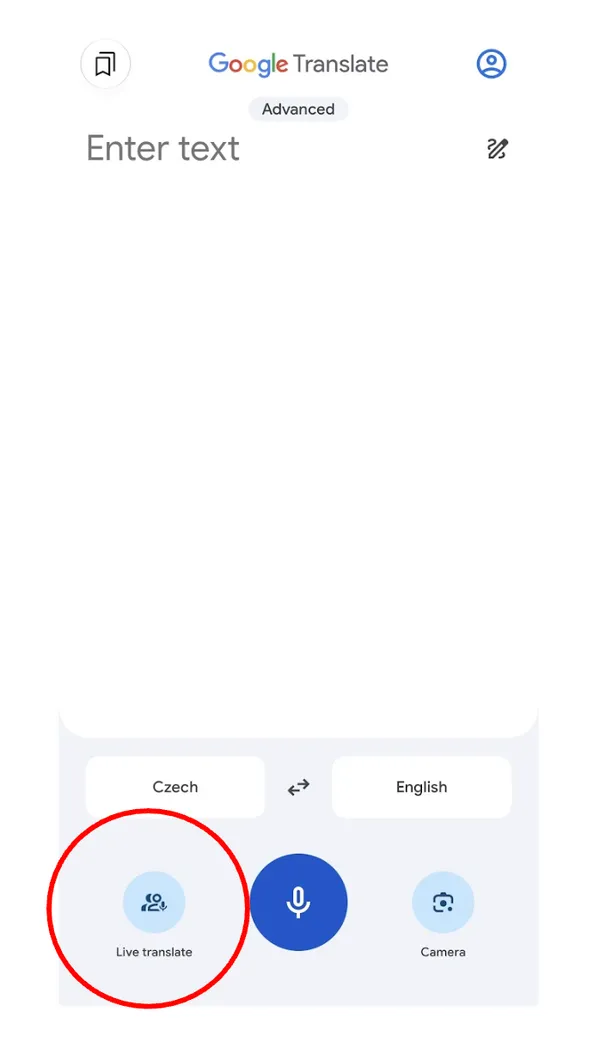
Open Google Translate. In the row of buttons at the bottom, tap Live translate.
-
Step 2:
Choose a mode
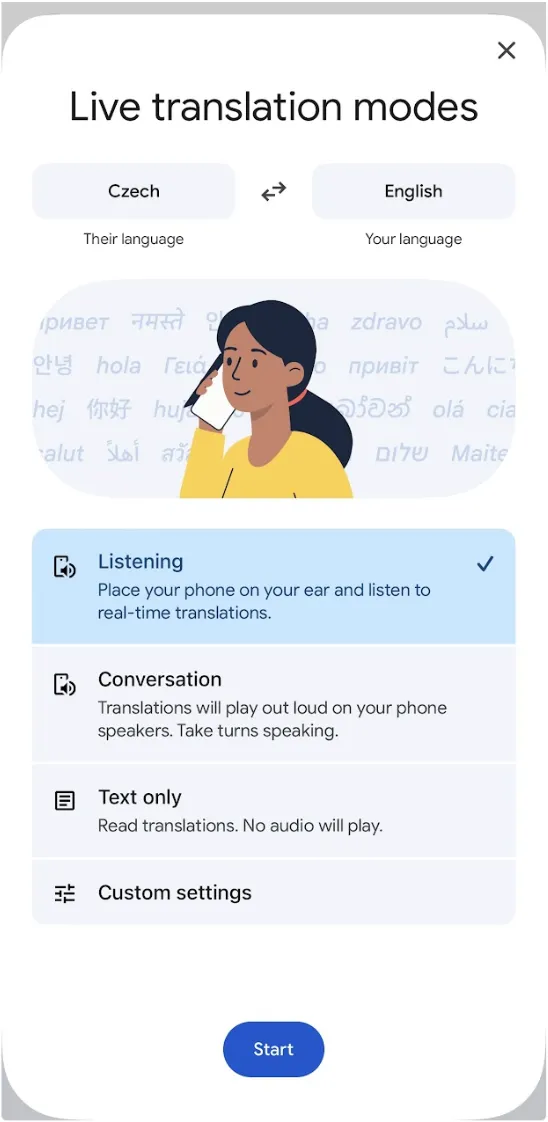
No headphones? Tap Text only. You read the translation and nothing plays out loud. With headphones in, tap Listening to hear it.
Tip: Please skip Conversation. It plays the translation through your phone speaker, and everyone around you is listening to the talk. (The app suggests holding the phone to your ear for Listening. In a full room, headphones work better, and our team can lend you a pair.)
-
Step 3:
Set Czech and your language
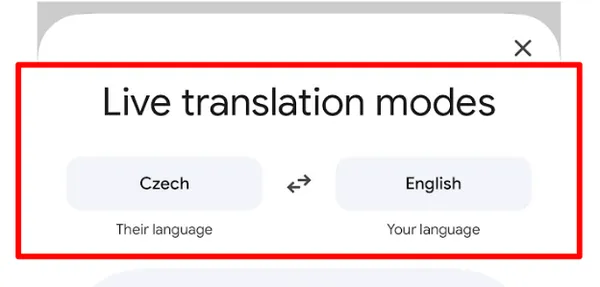
On the same screen, look at the top. Set Their language to Czech. Set Your language to English, or any language you like.
Tip: Look for the Live & Text tag next to a language. It means that language works with Live translate.
-
Step 4:
Tap Start
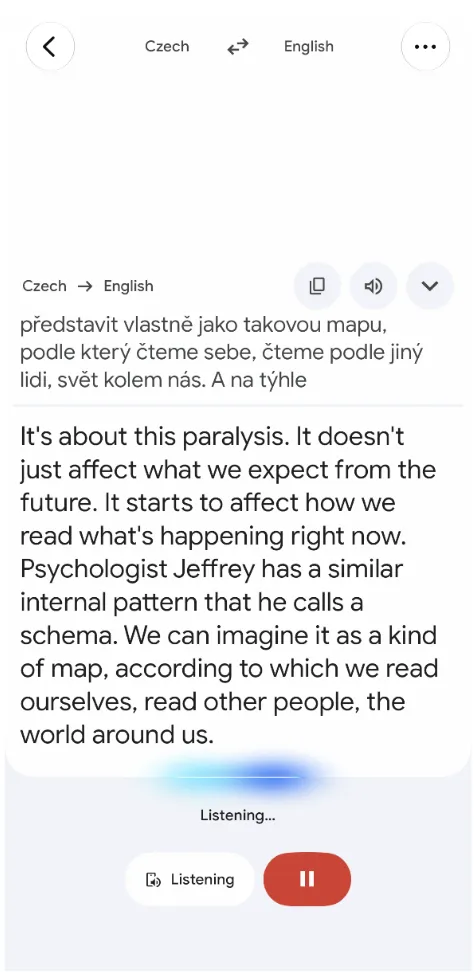
Tap the blue Start button and hold your phone up toward the person talking. Czech appears at the top, your translation right below it, line by line. You do not need to touch anything while it runs.
Tip: Missing words? Sit closer or hold the phone a bit higher.
Good to know
You need internet
Live translate works online. Czech is not available offline yet. Need Wi-Fi? Just ask someone from our team.
It runs a little behind
Expect a short delay. Background noise and people talking over each other make it harder, so stay as close to the person talking as you can.
It is a machine, not a person
Some sentences will come out a bit odd. That is normal.
Pick any language
Around 70 languages work with Live translate. Czech to Portuguese or Czech to German works the same way. Just change Your language.
Something not working?
The button is greyed out
You are in Transcribe, the older feature without Czech. Go back and tap Live translate.
Nothing shows up on screen
Microphone access is off. Turn it on for Google Translate in your phone settings.
You cannot find Live translate
Update the app. Live translate only shows up in recent versions.
It keeps repeating itself
Close the app and open it again.
Your phone is playing sound
You are in Listening or Conversation mode. Switch to Text only, which plays no audio.
Glad you are here
Enjoy the talk and the rest of the Session. Stuck at any step? Ask someone from our team at the entrance. We are happy to help.
See upcoming events